Amazon Sponsored Products Not Showing Up: A Diagnostic Guide
Amazon Sponsored Products not showing up? Learn how to diagnose bid, budget, Featured Offer, and policy issues with a clear troubleshooting framework for 2026.

Your Sponsored Products campaign is marked Delivering, but the dashboard shows no impressions and spend hasn't moved. You've raised the bid, checked the keywords, and maybe increased the budget, yet the product still doesn't appear in search results or on detail pages. That's a familiar failure pattern, and it often leads advertisers to optimize the wrong layer.
Amazon Sponsored Products not showing up isn't always a bidding problem. A campaign can be live in Campaign Manager and still fail to enter an auction because the ASIN isn't eligible, the seller doesn't hold the Featured Offer, the product is unavailable, or the account has a delivery constraint. The right diagnostic order is eligibility first, Featured Offer ownership second, placement competitiveness third, budget and propagation fourth, and policy and listing health last. That sequence prevents you from pushing bids into a campaign that never had permission to compete.
Why Your Campaign Shows Delivering but Gets Zero Impressions
The green Delivering status confirms that Amazon accepted the campaign configuration. It doesn't guarantee that the advertised product qualifies for every auction or that its bid is competitive enough to win an available placement.
Amazon's own troubleshooting guidance separates campaign status from actual impression delivery. New campaigns may take up to 72 hours before impression data appears, and a campaign can show as Delivering while the advertised ASIN doesn't hold the Featured Offer, according to Amazon's guidance on campaigns with zero impressions. Treat the status as a starting signal, not proof that the ad is visible.
Start with these questions:
- Can the product advertise? Check whether the ASIN is active, in stock, in an eligible category, and available to buy.
- Does your seller hold the Featured Offer? If another seller owns the offer, Sponsored Products may not serve for your SKU.
- Can the bid compete in the intended placement? Top of Search, Rest of Search, Product Pages, and Amazon Business placements have different auction conditions.
- Is delivery constrained by budget or account settings? Look for campaign pauses, portfolio caps, budget exhaustion, or recent edits still propagating.
- Has the listing or account been suppressed? Policy flags, payment problems, account health issues, and listing restrictions can block delivery even when campaign settings look normal.
Practical rule: Never raise a bid until you've confirmed that the ASIN is eligible and your seller owns the Featured Offer.
This is why a broad article about Amazon PPC campaigns not working can still send you in the wrong direction if you apply bid advice before checking retail eligibility. PPC can support organic growth and profitable scale, but only after the product is available, buyable, and eligible to receive the traffic.
Checking Eligibility, Featured Offer, and Inventory First
Amazon evaluates several gates before Sponsored Products can compete for an impression. The advertised item must belong to an eligible category, be eligible for the Featured Offer, and be connected to an active seller account in good standing. Amazon also lists professional sellers, vendors, book vendors, KDP authors, and agencies among the groups that can use Sponsored Products through its Sponsored Products eligibility overview.
The practical implication is simple. A live campaign doesn't override retail conditions. If the ASIN is inactive, out of stock, restricted, or unavailable to the shopper, the auction never becomes the problem.
The gates that matter
Featured Offer eligibility comes first. Sponsored Products are tied to an offer customers can buy. If your seller's offer isn't eligible, the ad can remain configured while impressions stay at zero.
Inventory must be available. Amazon states that Sponsored Products only appear when advertised items are in stock. Check both the listing's inventory status and the offer's ability to ship to the relevant marketplace.
Category restrictions can remove the ASIN from delivery. Amazon identifies categories and conditions such as adult, used, refurbished, and closed-category items as ineligible in relevant contexts. A product can remain visible as a catalog record while advertising access is restricted.
Account and payment health can stop delivery. An active campaign doesn't compensate for an account issue, payment problem, or other restriction that prevents advertising activity. Review account notifications, payment settings, and any warning in Seller Central before changing bids.
| Eligibility Gate | Symptom in Campaign Manager | Required Action |
|---|---|---|
| Featured Offer eligibility | Campaign is live, but the ASIN receives no impressions | Verify which seller owns the Featured Offer and advertise the eligible SKU |
| Inventory and buyability | Product is missing from setup or delivery stops | Confirm the ASIN is active, in stock, and available to purchase |
| Category or condition restriction | Product remains in the catalog but cannot serve ads | Review category requirements and resolve any approval or restriction |
| Account and payment health | Multiple campaigns stall or remain inactive | Check account notifications, payment status, and seller eligibility |
If any of these gates is closed, downstream changes won't fix the problem. A higher bid can't make an out-of-stock product eligible, and a larger budget can't restore a suppressed offer.
Verifying Buy Box Ownership and Switching ASINs Correctly
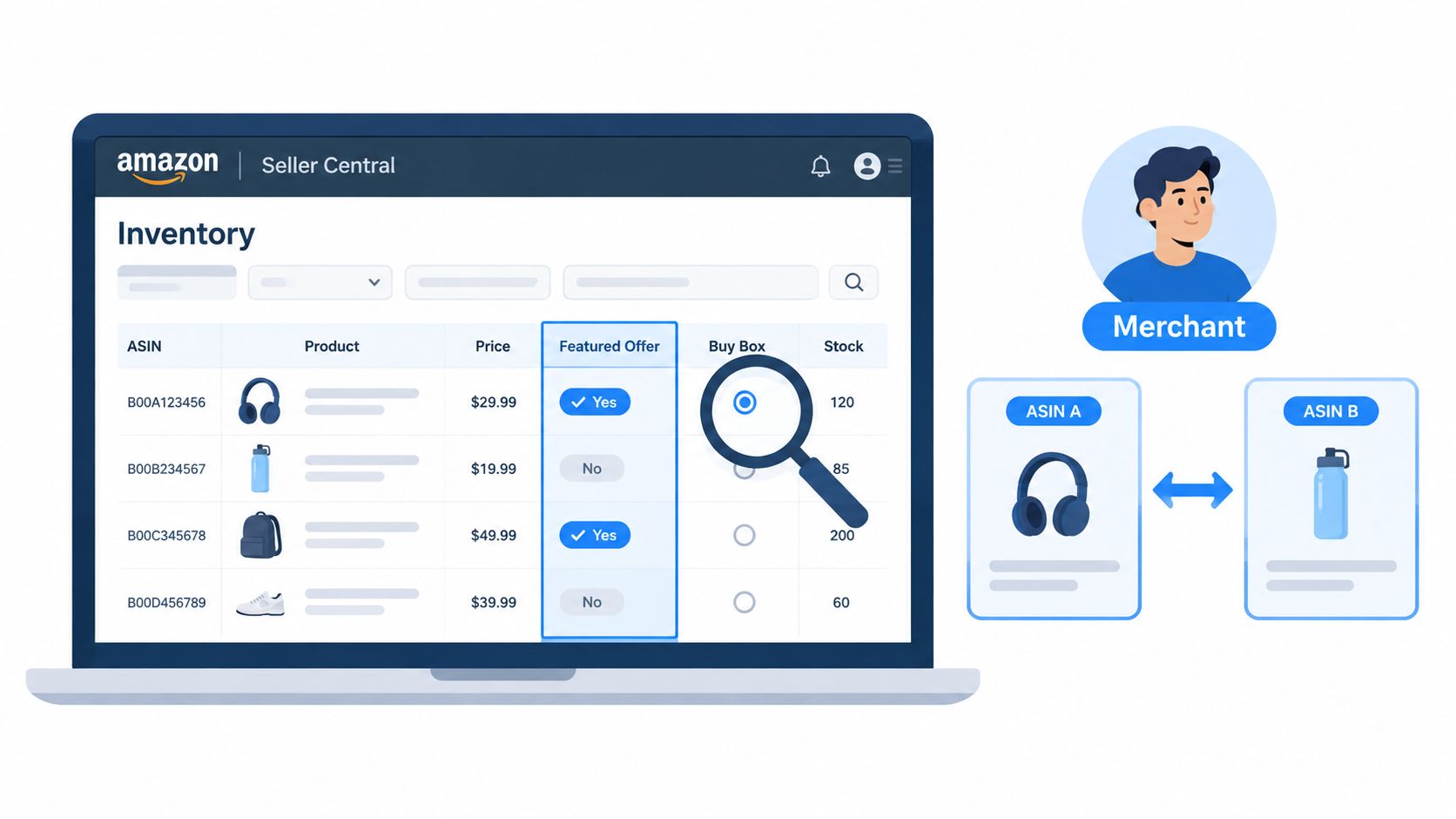
A campaign can target the correct catalog page and still receive no impressions because your seller does not own the Featured Offer. Controlling the brand, content, or ASIN record does not give your account control of the offer customers see first. On a multi-seller listing, offer ownership belongs to a specific seller and SKU.
Open Seller Central and check the seller attached to the Featured Offer for the exact product being advertised. Start in the Inventory view, open the listing, and confirm whether Add to Cart and Buy Now identify your seller. Amazon recommends this sequence in its Featured Offer troubleshooting guidance.
If another seller owns the offer, pause bid changes. Confirm ownership before treating zero impressions as a keyword, budget, or auction problem. Amazon identifies Featured Offer ownership as a delivery condition for Sponsored Products, although zero impressions during the first 72 hours do not by themselves prove that ownership caused the issue.
Use the correct SKU when the offer changes
When your offer becomes eligible, update the advertised seller-specific SKU rather than relying on the ASIN alone:
- Open the ad group containing the affected product.
- Remove the seller SKU or ASIN that your account cannot currently advertise.
- Add the SKU attached to your current Featured Offer.
- Confirm that the ad group contains only products your seller can advertise.
- Recheck the listing and offer status before evaluating delivery.
The ASIN may remain unchanged while the eligible offer changes. A campaign can therefore point to the right catalog record but the wrong seller offer, leaving the ad unable to serve.
Check a current Featured Offer or Buy Box report before relaunching. Ownership can change after a price, inventory, fulfillment, or seller update. The Buy Box on Amazon is therefore an advertising control point, not only a retail performance metric.
How Bid Competitiveness by Placement Affects Visibility
Eligibility and Featured Offer ownership come first. Once both are confirmed, examine the auctions your campaign is trying to win. Sponsored Products can serve across distinct placement buckets, including Top of Search, Rest of Search, Product Pages, and Amazon Business placements, as described in Amazon's bidding and placement documentation.
A campaign may receive Product Page impressions while disappearing from the top of search results. That pattern usually means the campaign remains eligible, but its bid and relevance combination is competitive in one auction environment and weak in another. Treating blended delivery as proof of healthy visibility hides the problem.
Separate the placement signals
Review impressions, clicks, spend, and sales by placement. Campaign-level totals can conceal a complete loss in the placement that matters most to your objective.
- Top of Search has limited, commercially valuable inventory and often demands stronger auction competitiveness.
- Rest of Search can extend coverage, but its traffic and conversion behavior may differ from the first results page.
- Product Pages depend on eligible detail-page opportunities and the quality of the product-targeting context.
- Amazon Business placements provide another delivery route, with auction behavior that may differ from consumer search inventory.
The campaign's default bid establishes the starting point for every eligible target. Placement adjustments build from that base. If the base bid is too weak, increasing a placement modifier may change the displayed setting without making the adjusted bid competitive enough to win the desired auction.
Use the controls in the right order:
- Set the default campaign bid at a level that can compete for the relevant targets.
- Apply a placement adjustment only where the campaign has a clear objective and enough data to support it.
- Review the target and match structure. Keywords, products, and categories determine which auctions the campaign can enter.
- Check budget availability before raising bids. A campaign can win opportunities it cannot fund, while higher bids can exhaust its budget sooner without increasing total reach.
Low-traffic target categories or products can produce few impressions regardless of bid strength. Product targets that do not appear in organic search results may also fail to generate delivery. Confirm real marketplace demand and product relevance before making aggressive bid changes.
Bid decisions should follow the placement objective. If Top of Search visibility drives the campaign's purpose, evaluate Top of Search data directly. A blended campaign can look healthy while losing visibility in its most important auction bucket.
When Placement Routing Changes Quietly Kill Impressions
A campaign can show as active while its main source of visibility dries up. Amazon may reroute eligible inventory without a visible account edit, so the first warning often appears in placement reporting rather than campaign settings.
An independent 2026 analysis found that 68% to 75% of Sponsored Products impressions for a group of brands appeared on product detail pages between August 20 and August 26. On August 27, product detail page impressions fell by about 56%, total impressions declined roughly 40%, and non-product-page placements remained flat, according to the analysis of Sponsored Products impression changes.
That pattern points to an inventory or routing shock, not an obvious keyword, bid, or budget change. The campaign may still be eligible and active, while the placement pool providing most of its delivery has changed.
Read placement data as a routing signal
Start with Search Term Reports for comparable periods. Compare the impression share by placement, the search terms that lost visibility, Product Page delivery against search delivery, and any auction or competitive-visibility indicators available in your reporting stack. Check organic rank and detail-page relevance for the affected targets at the same time.
The sequence matters. First identify which placement lost distribution. Then determine whether the loss affects specific search terms, targets, or the wider campaign. If Product Page delivery holds steady while Top of Search collapses, the campaign total can hide a serious problem in the auction bucket that matters to the business.
Routing can shift as relevance models change, organic results move, competitors enter auctions, or available placement inventory contracts. Those changes can reduce realistic serving opportunities even when the campaign settings look unchanged.
Separate the affected placement objective instead of duplicating the campaign blindly. Review the targets that lost distribution, then test whether the campaign can compete in the placement that still supports its profitability goal. This protects the relationship between PPC, organic ranking, and sustainable scale. Impressions matter only when they come from traffic the product can convert profitably.
Budget, Pacing, and the 72-Hour Propagation Delay
A campaign can show as Delivering while producing no visible impressions because its daily budget was already consumed, a portfolio cap is limiting it, or a recent edit has not reached every Amazon system. Check these constraints after Featured Offer and account eligibility, not before. A higher bid cannot fix a campaign that has no remaining budget or cannot serve the advertised offer.
Amazon says Sponsored Products begin serving only when the campaign is live. Delivery can be blocked when a campaign is paused, ineligible, over budget, or restricted by a portfolio budget cap. A budget change may take about 1 to 2 hours to update campaign status to Delivering, according to its budget and campaign status guidance.
Campaign status is only one signal. Amazon's troubleshooting guidance says clicks and impressions can take up to 72 hours to appear in Campaign Manager, especially for a new campaign or one that was recently changed. Record the exact edit time before judging the result. Otherwise, you may make another change while the first one is still propagating and lose a clean test window.
Start in the Campaigns view. Look for a Campaign Budget Exceeded message and review every delivery warning. Then open Portfolio settings. A campaign budget can appear adequate while a shared portfolio cap restricts the campaigns inside it.
Use a controlled sequence:
- Confirm the campaign is live and has daily budget available.
- Check for a portfolio budget cap or other shared limit.
- Verify that the advertised ASIN remains eligible and in stock.
- Record the timestamp for each budget or bid edit.
- Wait through the relevant reporting window before interpreting impression data.
A paused campaign that has just resumed may need time to return to normal delivery. Avoid stacking several edits in quick succession. Separate budget changes from bid changes when possible, so the next report shows which adjustment affected serving.
Retail events require the same discipline. Amazon Prime Day advertising planning should account for eligibility, budget control, and reporting lag alongside bid increases. More budget helps only when the product can serve and the campaign can enter the intended placement.
Policy, Listing Health, and a Final Diagnostic Checklist
Policy and listing health are the final layer, but they're often the first explanation teams overlook after checking bids. A suppressed listing, restricted product state, unresolved approval, payment issue, or account warning can leave the campaign looking normal while the advertised offer is no longer eligible to serve.
Review the listing itself, not only the campaign. Check whether the ASIN is active, buyable, in stock, and free of visible suppression notices. Then inspect product content, attributes, images, claims, and category status for policy or quality flags that could restrict the offer or its creative eligibility.
Run the checks in execution order
- Confirm Featured Offer ownership. Verify the seller shown for Add to Cart and Buy Now on the live listing.
- Validate ASIN eligibility. Check category access, listing status, inventory, shipping availability, and account standing.
- Check budget and portfolio controls. Look for delivery warnings, shared caps, and recent edits.
- Review placement competitiveness. Compare Top of Search, Rest of Search, Product Pages, and Amazon Business delivery separately.
- Audit target demand. Low-traffic categories, products, and targets can suppress impressions even when configuration is valid.
- Inspect listing and policy health. Resolve suppression notices, missing details, image issues, restricted claims, and approval problems.
- Allow the reporting window. Account for status propagation and the period Amazon may need to populate impression data.
A weekly diagnostic ritual makes this manageable. Export placement and search-term data, compare Featured Offer ownership, review inventory and listing alerts, and record campaign changes with timestamps. The purpose isn't to make more edits. It's to identify which eligibility layer changed before a delivery decline damages sales velocity, profitability, or organic visibility.
PPC should be treated as a lever for sustainable growth, not a disconnected traffic source. When Sponsored Products reach an eligible, competitive, conversion-ready listing, the campaign can support sales while generating useful demand signals for organic strategy. When the listing cannot win the retail offer, paid traffic usually magnifies the underlying problem instead.
If delivery still stalls after all seven checks, open a Seller Central or Vendor Central case. Include the exact campaign IDs, ASINs, seller SKUs, timestamped screenshots, Featured Offer status, budget history, and the period when impressions stopped. That gives Amazon Support enough context to investigate delivery and auction-level behavior rather than sending you back to generic bid advice.
Headline Marketing Agency manages Sponsored Products through campaign architecture, bid optimization, negative keyword work, and search-term analysis, with attention to profitability and organic ranking. If your campaigns remain eligible but visibility is unstable, visit Headline Marketing Agency to discuss a structured Amazon PPC diagnostic and growth plan.
Get Your Free Amazon PPC Audit
Discover untapped growth opportunities and see how our data-driven approach can improve your ROAS.
Get Free Audit →Wollen Sie Ihre Amazon PPC-Performance aufs nächste Level bringen?
Lassen Sie Ihre Amazon PPC-Kampagnen professionell analysieren und entdecken Sie neue Wachstumsmöglichkeiten.